
Free
No credit card needed$0
Free forever
- 5 distinct URLs / month
- Unlimited repeats per URL
- No batch test
- No additional mobile viewport
- No scheduled batch runs
- No test after publishing
- Editor integration
- No test result in the toolbar
Accessibility test for WordPress
Detect digital barriers before they become a problem - right in your WordPress backend.
Test your WordPress website for digital barriers, detect typical WCAG issues early and improve user experience, reach and conversion.
Your website. Accessible to everyone.
An automated WordPress accessibility test helps you detect typical barriers early, prioritize issues precisely and make your website more accessible step by step.
Find weak spots on pages, posts and templates before they slow down your users.
Check key requirements right inside WordPress and see faster where concrete action is needed.
Quickly see which points are particularly relevant and should be tackled first.
Use clear hints to make your website more understandable, more usable and more accessible.
In the video
From the first check to a green score: the video shows the single test, score and traffic light, findings with Explanation & Solution, retesting and the check in the block editor. With subtitles and transcript.
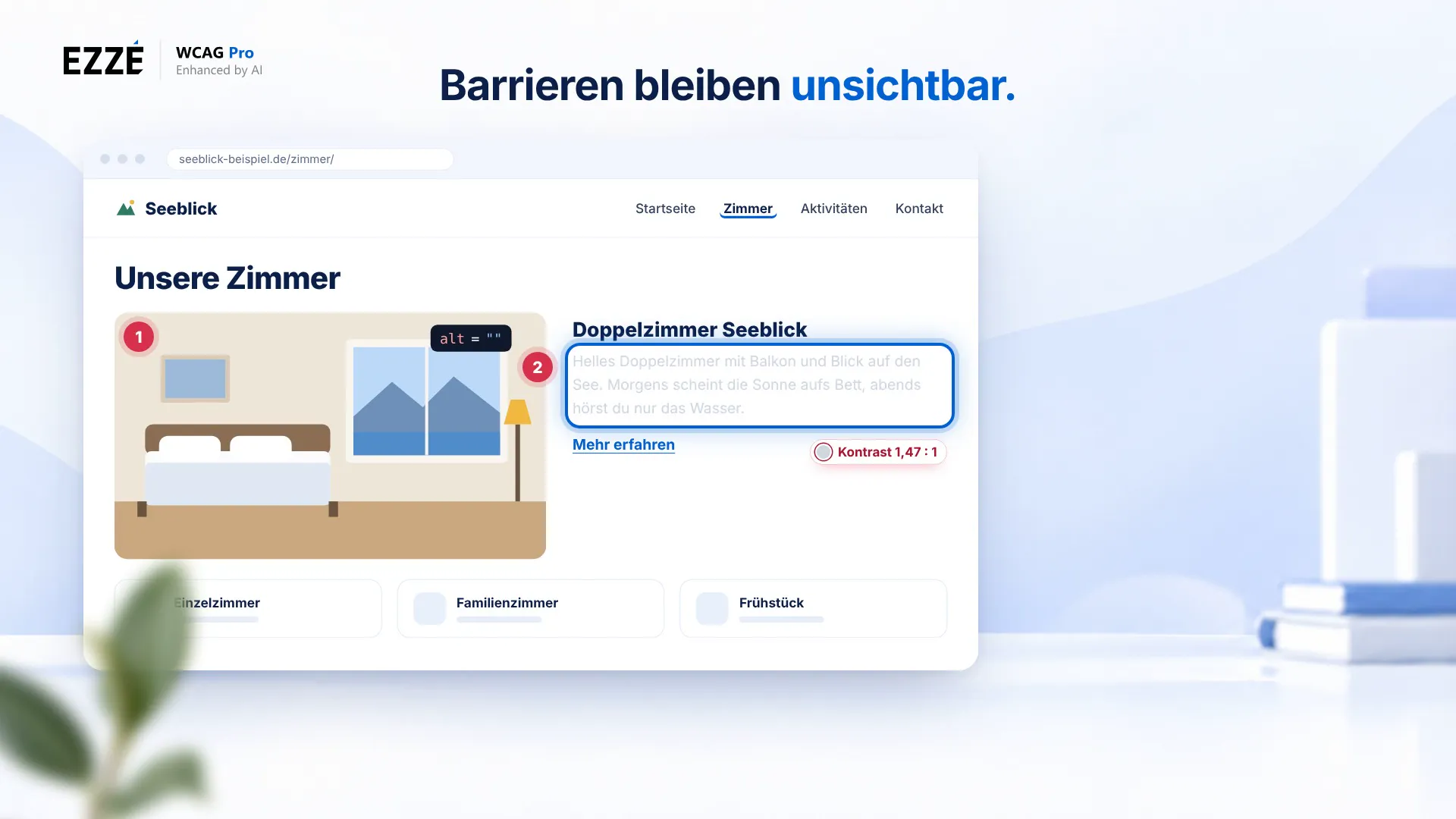
Lakeview, a small guesthouse. The website looks good. But not for everyone. If you can't see images, you only hear silence. If you read on your phone in bright sunlight, you can barely make out pale text. The “Rooms” page hides exactly three such barriers: an image without alt text, weak contrast and a link that only says “Learn more”. You don't see them at first glance. Searching every page by hand takes hours. The Accessibility Test in EZZE WCAG Pro finds problems like these right in the WordPress backend.
At the top of the Accessibility Test page, there are three tabs: Individual test, Batch test and Settings. We'll start with the individual test.
You decide what gets tested. Either you use “Select content” to pick a page from the list, with the built-in search. We'll take “Rooms”. Or, under “Enter URL”, you type in the path yourself. If the mobile view should be tested as well, you turn that on in Settings. One click on “Start test”, and you see what happens: check page URL, test desktop view, test mobile view, save result.
The result appears at the very top of “Latest test results”, with the score achieved for desktop and for mobile. When you expand the row, the score circle shows a number from zero to a hundred, plus a traffic light: green from 90, yellow from 50, red below that. Rooms: 78, yellow. Next to it, you see a screenshot of the page. If mobile testing is on, you switch between desktop and mobile at the top. Score, screenshot and findings then apply to the selected view. Below are four check groups: failed, manual, passed and not applicable.
Open the failed checks. Each finding is a card with a title, a severity from Critical to Low and a reference to the WCAG criterion. With “Show affected elements”, you see the code. “Explanation & Solution” tells you what to do, for free. And for a single element, the AI Element Fix gives you a concrete correction – in the test result or in the Inspector. With “Open Inspector”, you see the element right on the page.
Now you fix the problems. You let the AI suggest the alt text, right in the Media Library: “Generate suggestion”, a quick check, “Apply suggestion”. Then you darken the color and make the link text more precise. Finally, in the row, you choose “Retest”. The score improves significantly. Yellow turns green.
The check stays within reach in the block editor, too. In the sidebar, you find the “Accessibility” section: the score for desktop and mobile, “Last check” with date and time, and the link “Check accessibility again”. On the front end, an entry in the admin bar takes you straight to the test of the current page and starts it right away.
Test many pages at once, on a schedule or automatically after publishing? That's what our video on Batch Tests and Automation shows you. The Accessibility Test in EZZE WCAG Pro: find barriers before they exclude anyone.
A realistic view
The accessibility test finds many technical and structural issues quickly and reliably. It does not replace a full manual WCAG review, but it helps you detect typical barriers early, prioritize sensibly and fix them precisely.
More technical checkpoints
More manual assessments
This overview shows only an excerpt of typical check and assessment points. For a complete assessment, an additional manual review is advisable.
Understand & fix
Expand “Explanation & Solution” on any finding to see why the error matters and how to fix it – free and without using any quota. For a single affected element, AI Element Fix uses AI to suggest a concrete code correction and shows it as a preview.
Editor integration
Once a test is complete, EZZE WCAG Pro shows the current status right in the sidebar. The score is linked to the latest test result, and you can start a new test at any time via the link.
See right in the sidebar whether the last test has been completed.
Click the score and open the most recently saved test result directly.
Start a new test right from the sidebar whenever you need to.
More than a single test
Test larger websites in bulk, on a recurring basis and with clear permissions: we have put everything about batch tests, scheduled tests, the publishing check and permissions on a dedicated page.
Plans & quotas
Start with single page tests, repeat tests after making changes and extend the scope with batch tests depending on your plan. Your monthly URL quota stays visible right in the plugin.
$0
Free forever
$79.00 / year
equals $6.58 / month
plus applicable taxes
$149.00 / year
equals $12.42 / month
plus applicable taxes
$299.00 / year
equals $24.92 / month
plus applicable taxes
$899.00 / year
equals $74.92 / month
plus applicable taxes
Good to know
Everything you need to know about the test process, results, privacy and more. Learn how the test works and what to keep in mind when using it.
No. Automated tests are a very helpful first step, but they do not replace a full manual review or conformance assessment.
Many technical barriers can be detected well by machines. Context-dependent, content-related or logical issues, however, still need to be checked manually, for example through expert reviews or tests with real users. The accessibility test helps you find typical issues early and keep an eye on them continuously.
The accessibility test offers you several ways to test your website flexibly:
Some features are available depending on your plan. You can find all details on the Batch tests & workflows page.
No. Repeated tests of the same URL within the same calendar month do not consume new URL quota every time.
What matters is the number of distinct URLs tested within a calendar month. The exact limits depend on your plan and are described in the license and limits documentation.
The cloud test loads your page as it is reachable from the outside via the internet. Viewport, load timing, scripts, cookie banners, overlays, lazy loading or A/B tests can affect the visible page state.
If the test receives a different view of the page than you see in your browser or in another tool, score and findings can differ. Cookie or consent banners in particular can hide elements or change the page layout.
In the accessibility test settings you can use the option “Hide cookie banner during cloud tests”. A secret URL parameter is then added for the cloud test only. Your website recognizes this request and can hide the cookie banner for the test.
Built-in support is already available for common consent tools. You can find them on the Integrations page. For custom solutions, a developer can connect the feature to your own consent tool via documented hooks and filters.
Yes. A connected Freemius license is required for cloud tests. It identifies your website unambiguously and technically unlocks the use of the cloud features.
At the same time, the connection is important so that the required legal basis can be confirmed properly – in particular the privacy policy, the terms of use and the data processing agreement (DPA) for processing as part of the cloud features.
If your website is not connected yet, the plugin lets you know in the settings.
Get started
Test content, optimize images and keep track of your accessibility results right inside WordPress.
With the accessibility test from EZZE WCAG Pro you test your WordPress website automatically for typical accessibility issues. The test analyzes your pages in a browser and clearly shows you where potential barriers exist. You get concrete findings with severity, WCAG reference and helpful hints for fixing them – right in your WordPress environment.
That way you see faster which areas of your website should be optimized, without having to search for every detail manually. The accessibility test helps you find technical weak spots early and make your website more accessible step by step.
Whether a single page, multiple URLs in a batch or regular tests: the accessibility test helps you monitor the digital accessibility of your website for the long term. For agencies, developers and professional website owners in particular, this creates a clear workflow for testing, documenting and improving accessibility topics in a structured way.
With a focus on WCAG, BITV and BFSG, EZZE WCAG Pro helps you not only detect barriers once, but keep an eye on them continuously. That turns the accessibility test into a practical tool for better, more user-friendly and future-proof WordPress websites.